
If you've opened Google Tag Manager recently, you've probably seen a banner asking you to optimize your container. This post explains what that does, whether you should do it, and how to do it without breaking your GA4 or Google Ads data.
The short answer
Google has merged the Google tag into Google Tag Manager. After you optimize, your GTM container does the job the Google tag used to do. GA4, Google Ads and Floodlight become destinations inside it.
Yes, it replaces the Google tag, for every destination you add. Each gets a new destination tag (Google Analytics, Google Ads or Google Floodlight). The old Google Tag isn't removed for you: in our test it stayed, kept firing, and Tag Assistant showed the page view sent twice.
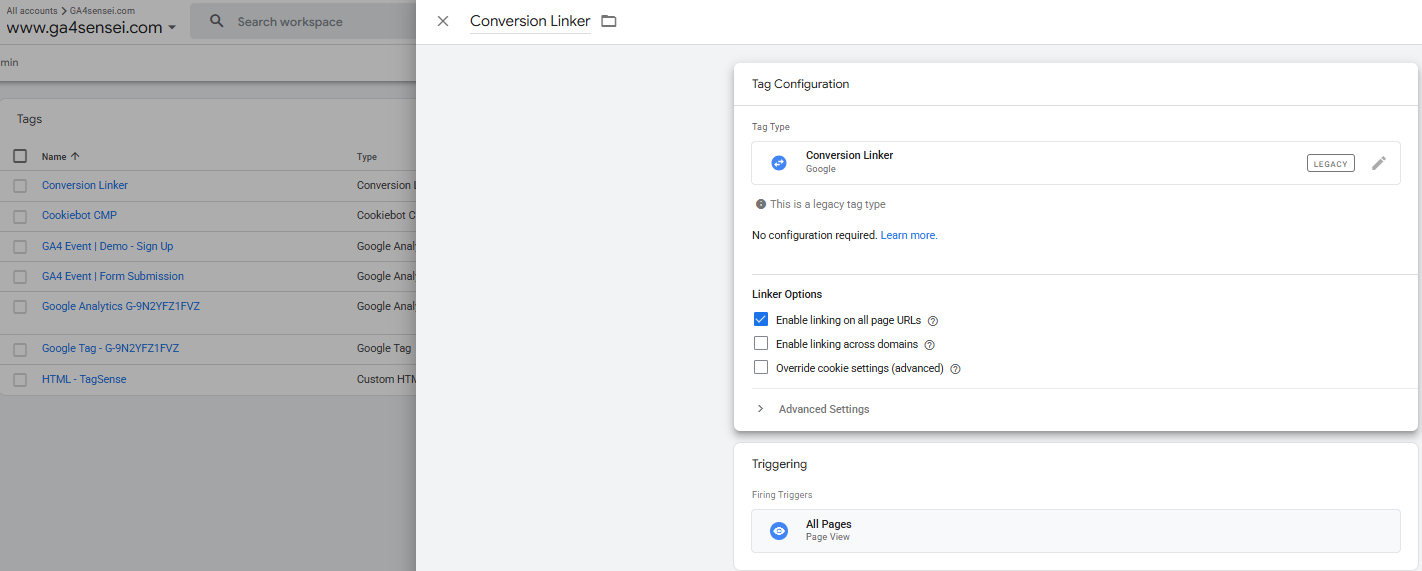
The Conversion Linker tag is now legacy too. Destination tags handle conversion linking, so you can remove it once you've tested. In our own container it now shows a Legacy label.
Nothing changes automatically. The wizard writes its changes to a workspace. You preview them, and nothing goes live until you publish.
Your GA4 event tags and consent mode setup keep working as they are.
What Google changed, and when
Google announced the changes on its Updates to Google tag and Google Tag Manager page:
Date | Change |
|---|---|
20 Aug 2026 | Simplified interface. A new Settings section for container-wide settings, with Triggers, Variables, Templates and Folders moved under Advanced. Google tag and GTM unification announced: Google tags become full Tag Manager containers. |
12 Oct 2026 | Destination tags (Google Analytics, Google Ads, Google Floodlight) and the optimization wizard released. The standalone Google Tag and the Conversion Linker are marked Legacy. |
2026 (beta) | Visual tagging: set up events and conversions by clicking page elements. It starts with Google Ads purchase conversions. |
Until now, a typical container loaded a Google Tag on Initialization – All Pages. That tag downloaded its own copy of gtag.js, and your GA4 event tags and Google Ads conversion tags ran on top of it. In an optimized container, the instructions for each Google product ship inside gtm.js itself. Google's description: containers can "send data directly to Google destinations", without loading the extra gtag.js.
Is this a replacement of the Google tag in GTM?
Yes, for the tags you migrate.
Before | After optimization |
|---|---|
Google Tag (G-XXXX) on Initialization – All Pages | Google Analytics destination tag |
Google Tag (AW-XXXX) | Google Ads destination tag |
Google Tag (DC-XXXX) | Google Floodlight destination tag |
Settings inside each Google tag (and in GA4 Admin → Configure tag settings) | One Settings tab for the whole container |
Conversion Linker on All Pages | Not needed (marked Legacy) |
GA4 event tags, Google Ads conversion tags, non-Google tags | Unchanged |
The legacy Google Tag type is still available under Other Google and still works. Any tag the wizard can't migrate also stays a legacy Google Tag. The cost of staying legacy is the extra gtag.js download for each tag.
How useful is it?
Fewer scripts on your pages. One container library replaces one gtag.js per Google product. Google says this reduces latency in sending measurement data. Google doesn't publish a speed number, so measure your own site before and after.
One place for settings. Automatic event detection, your domain list for cross-domain measurement, user-provided data and the other shared settings now live in the Settings tab. They're versioned like tags, so they can be previewed, published and reverted.
Better debugging. Preview mode has a new Hits Sent tab and shows which hits were held back while consent was missing.
Easier team access. The wizard links the container to your GA4 and Google Ads accounts, so the container is visible from those products.
One less tag to maintain. You no longer need the Conversion Linker.
Should you optimize? Use cases
Your setup | Recommendation | Watch out for |
|---|---|---|
GA4 only | Optimize. The simplest case. | Any hard-coded gtag.js on the site for the same ID (duplicate page views) |
GA4 + Google Ads | Optimize both together. This is where the Conversion Linker becomes redundant. | Automatic events now also go to Google Ads. Set URL passthrough again if you used it. |
Google Ads + Floodlight (agencies) | Optimize, one destination at a time | Settings from different tags being merged into one |
Several GA4 properties picked by a Lookup Table or RegEx Table | Wait, or keep these as legacy tags. The wizard can't migrate a Tag ID that's calculated at runtime (constants work). | Temporarily hard-coding the ID to get through the wizard, then forgetting to restore the variable |
Cross-domain (e.g. a separate checkout domain) | Optimize, then check the domain list | A wrong list breaks sessions or counts your own checkout as an outbound click |
Server-side GTM | Optimize the web container. The server container doesn't change. | Keep the server container URL in the destination tag. A Conversion Linker inside the server container may still be needed. |
Shopify, or gtag.js pasted into the theme | Remove the hard-coded snippet first | Double page views and conversions |
Agency-managed or shared containers | Review access before linking | Everyone with access to the linked GA4 or Ads account gets Read access to the container |
Sites with a cookie banner and consent mode | Optimize. Consent mode keeps working. | Test denied and granted consent in Preview (see below). |
Before you click "Optimize": pre-flight checklist
Write down the current live version number. It's your rollback point.
Open "View settings" on every Google Tag and note its cookie, domain, internal traffic, session timeout and consent settings. When two tags have different settings, the merged result will change at least one of them.
List any Tag IDs that come from a variable (Lookup Table, RegEx Table, custom JavaScript). The wizard can't migrate these yet.
Note whether you use URL passthrough. It isn't carried over automatically.
Check your site's source for a hard-coded gtag.js for an ID that GTM also loads.
Review who has access to each GA4 property and Google Ads account. Those people get Read access to the container.
Check custom event triggers that match every event (.* regex). One report says gtag('config') commands now appear as dataLayer events, which such triggers would catch. We couldn't test this ourselves (our container has no catch-all triggers), so treat it as reported, not confirmed, and compare tag firing in Preview.
Check conversions built on automatic form events (form_submit). If you switch form interactions off in the shared settings, those conversions stop.
Check your permissions. You need Edit to start the wizard and Publish to publish in GTM, and Administrator on the GA4 property to create the account link.
Create a new workspace for the migration, so it's separate from other work in progress.
Step by step: optimizing your container
Start from the banner. Click "Optimize your container" on the Overview page, or go to Settings → Google destinations. Work in a new workspace.
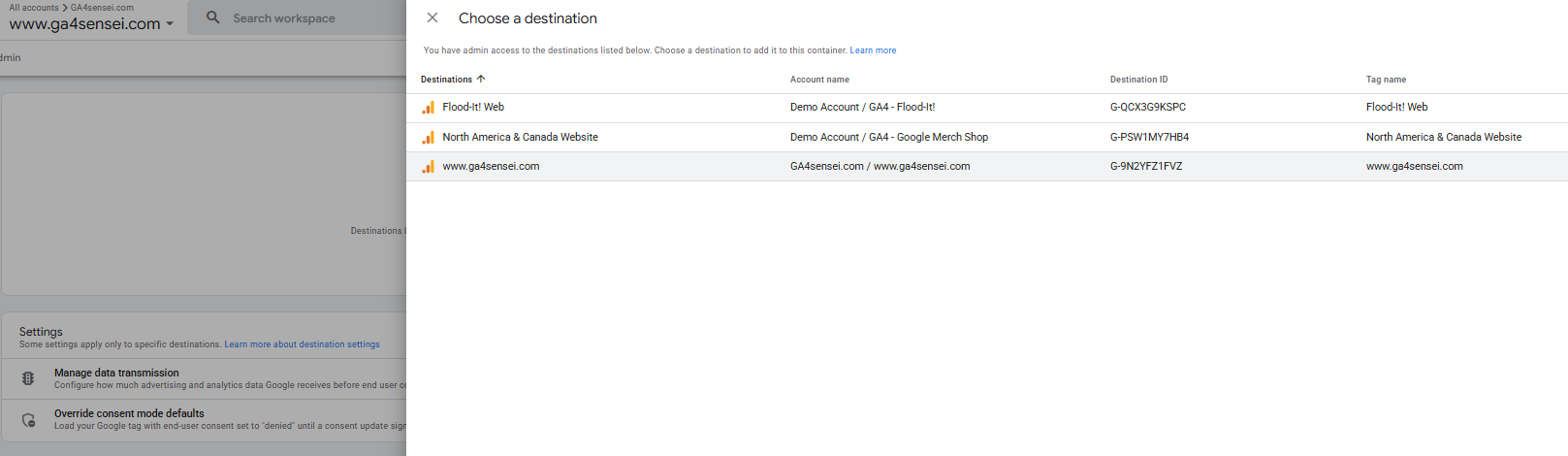
Add a destination. The wizard asks you to click Add destination and pick the GA4 web stream (or Google Ads / Floodlight account) to connect. The list shows every destination you're an admin of, including Google's demo accounts if you've added them, so pick carefully.
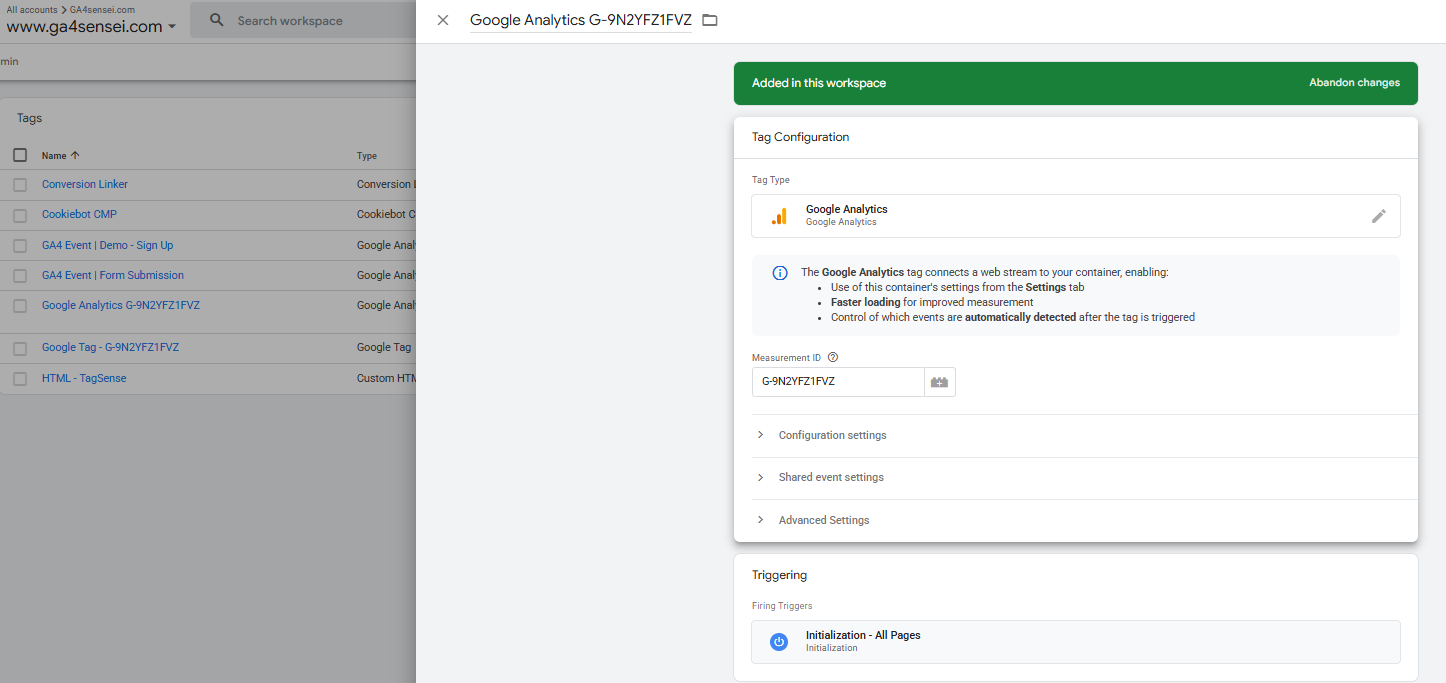
Check what was added. GTM creates a new tag (ours was named "Google Analytics G-9N2YFZ1FVZ") on the new Initialization – All Pages trigger, and lists the destination as Optimized on the Settings tab. Your existing Google Tag is left as it is: remove it yourself (see below). Nothing is live until you publish.
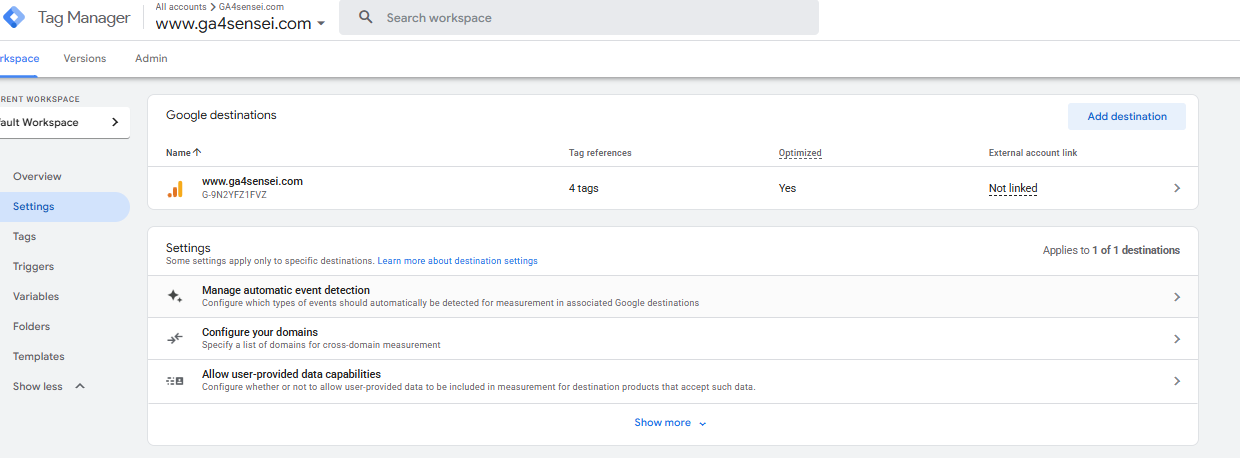
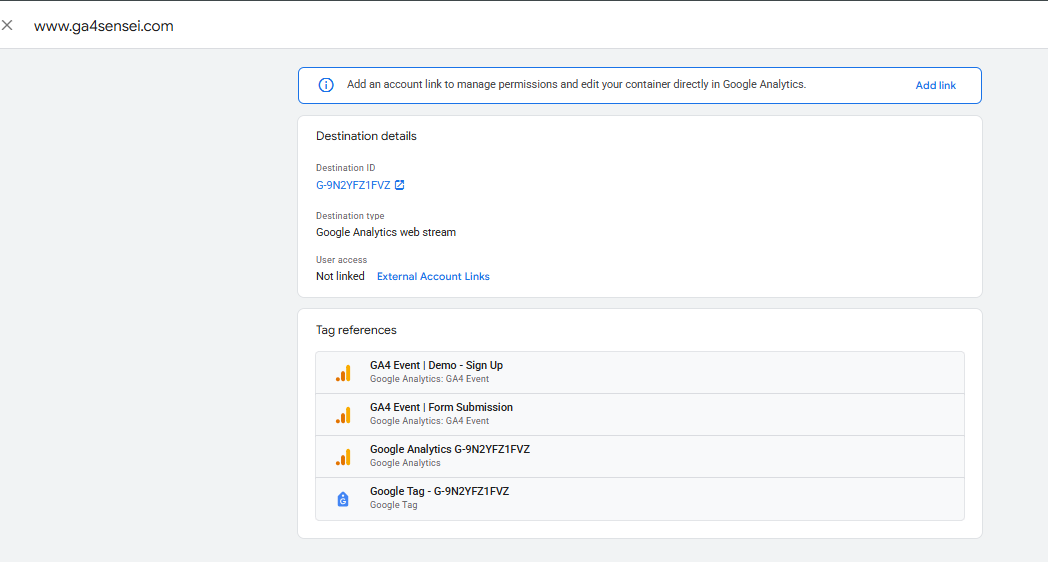
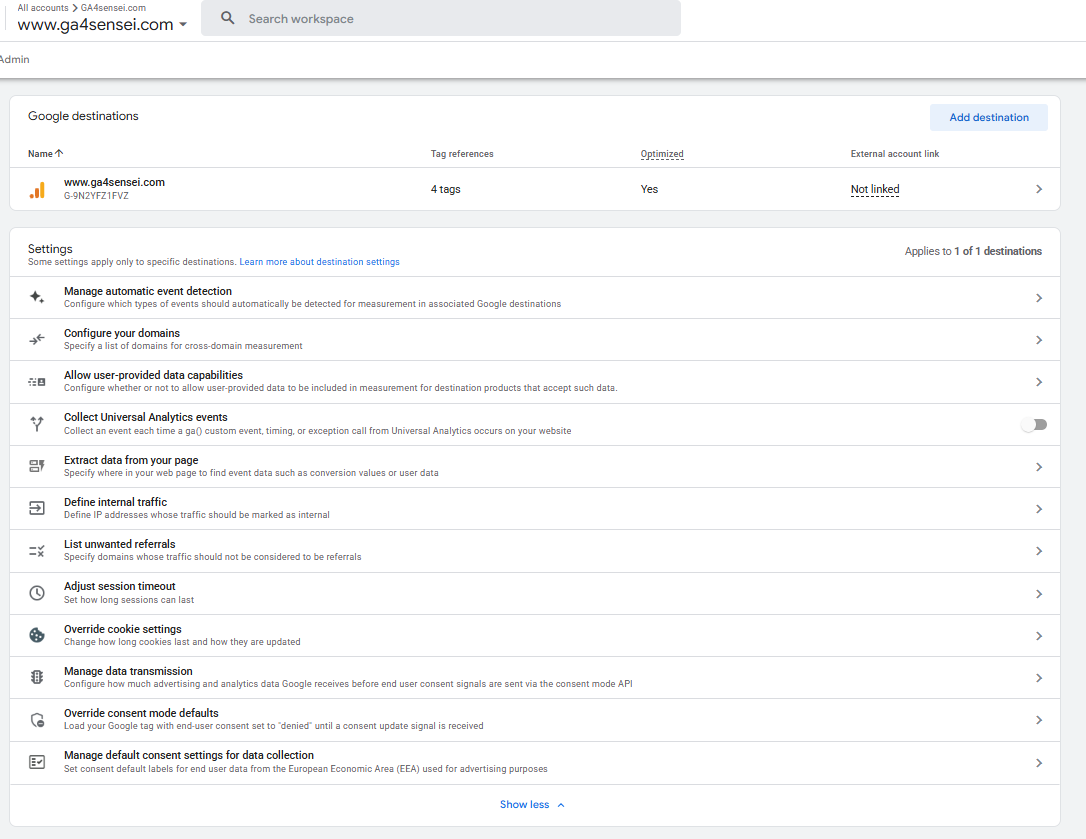
Review the Settings tab. Each destination should show Optimized: Yes. Click a destination to see its type ("Google Analytics web stream" for GA4) and every tag that references it.
Look at the new Google Analytics tag. It holds only the Measurement ID and fires on the new Initialization – All Pages trigger. Its panel says it uses the container's Settings tab, loads faster, and controls automatic event detection.
What to change in GTM afterwards
Automatic event detection. These toggles (page changes based on browser history, scrolls, outbound clicks, form interactions, video engagement, file downloads) now apply to every destination, Google Ads included. Decide on each one. In our container all six were switched on.
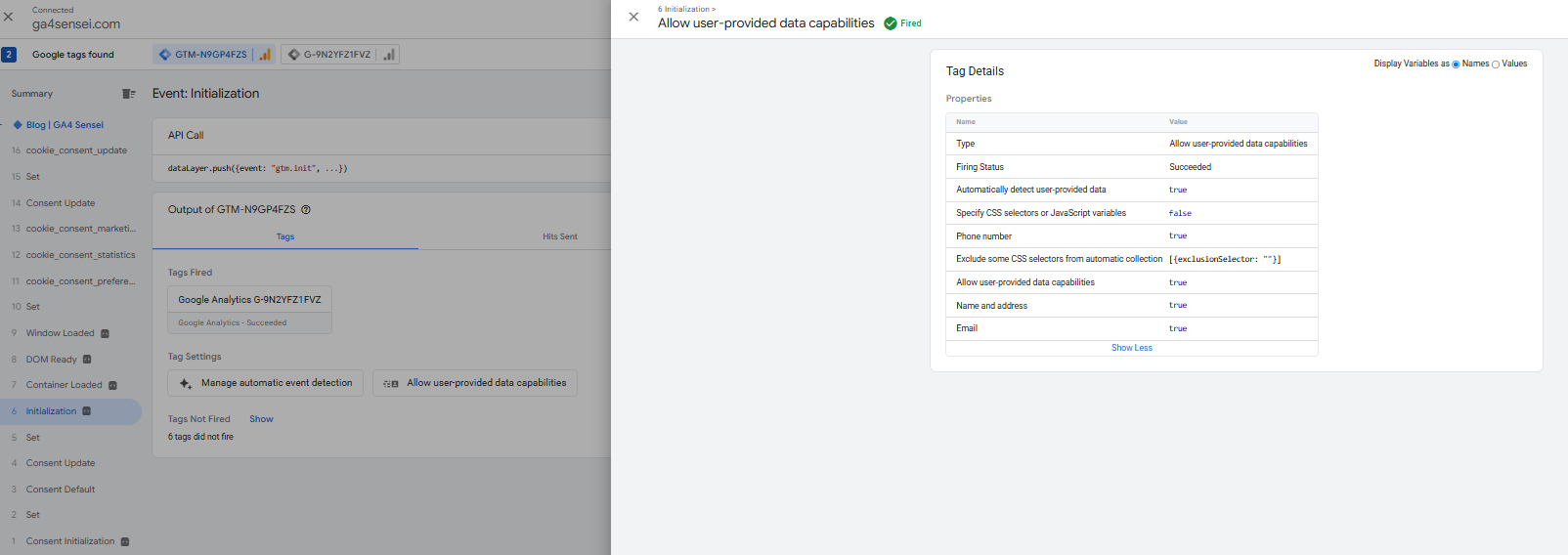
User-provided data. Check Settings → Allow user-provided data capabilities. In our container, automatic detection of email, phone number, name and address was switched on for Google destinations. That data is hashed before it's sent, but it's still personal data: make sure your privacy policy and consent banner cover it, or switch automatic detection off.
Configured domains. Make sure every domain in your journey is listed, especially checkout and payment domains. The same list decides which clicks count as "outbound".
URL passthrough. It isn't carried over from the Conversion Linker. Set it again in the destination tag's configuration settings (parameter url_passthrough, value true), or in your consent banner if it supports it. Our Cookiebot template already sets it, which is why our Conversion Linker's "Enable linking on all page URLs" was a duplicate.
Lookup Table variables. If you swapped one for a fixed ID to get through the wizard, put it back and test each hostname.
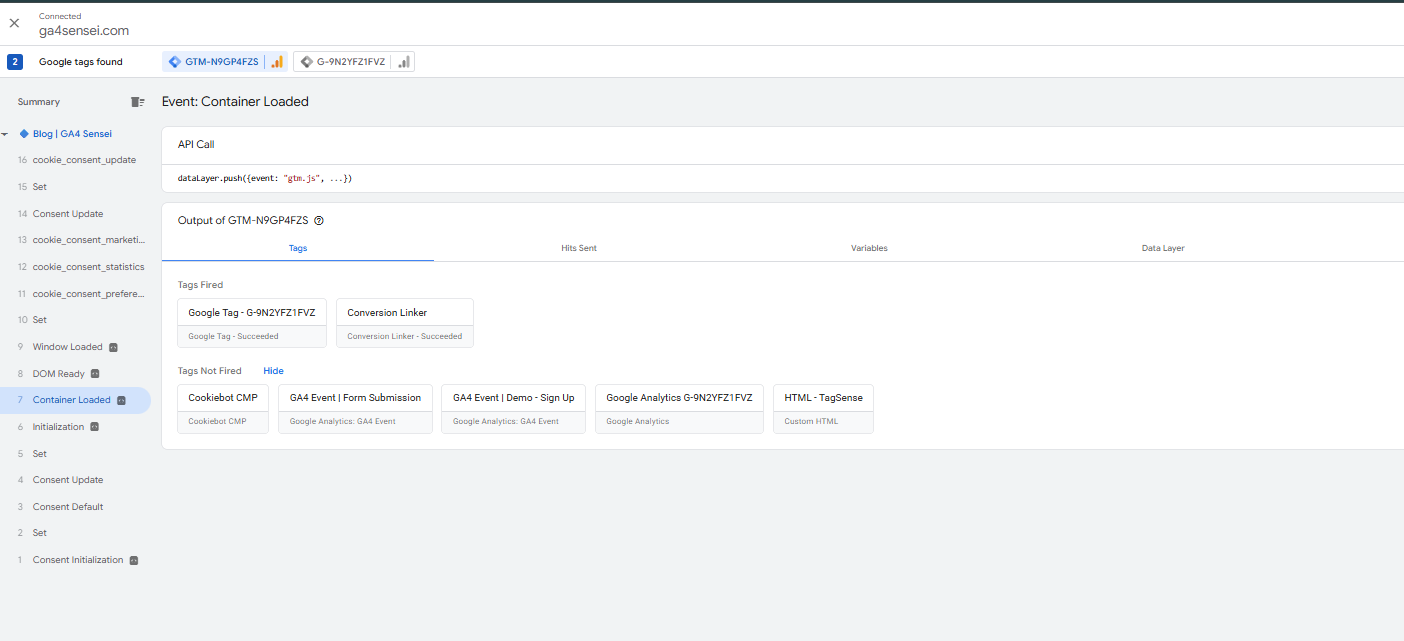
Remove the legacy Google tag for the same ID. Adding the destination doesn't touch your old Google Tag. In our workspace "Google Tag - G-9N2YFZ1FVZ" stayed, fired on Container Loaded, and loaded its own gtag.js. Tag Assistant then showed two page_view hits for the same Measurement ID on the same page: one from the old tag's gtag.js (the hit's gtm parameter starts 45je…) and one from the destination tag inside gtm.js (45He…). Check DebugView, then pause the old tag.
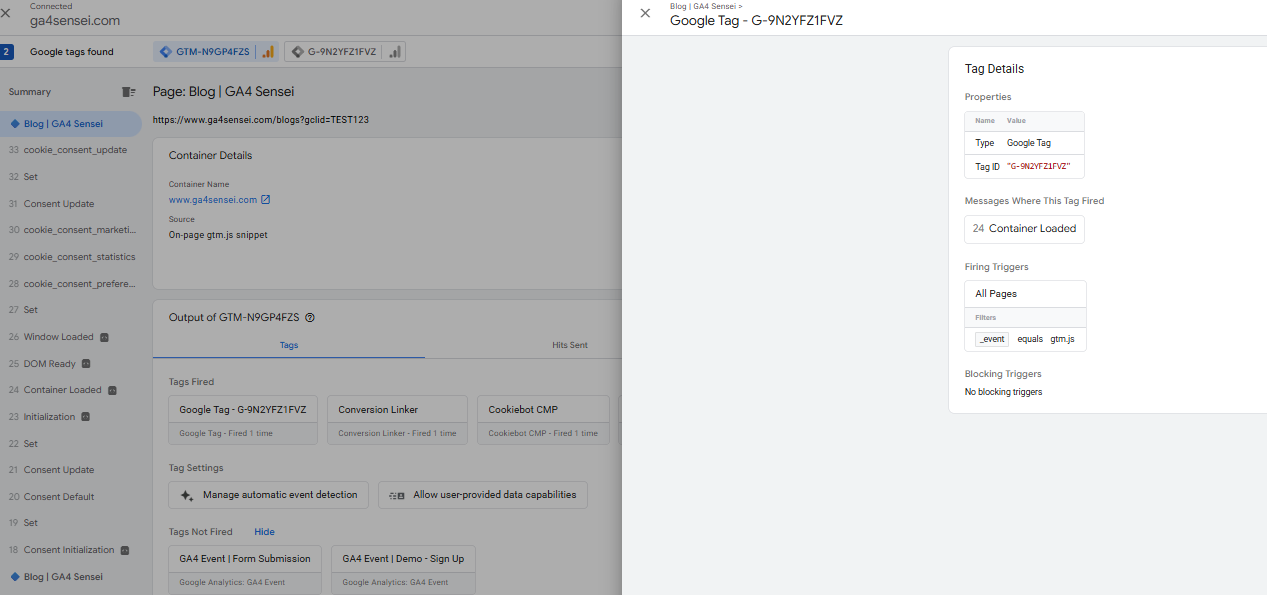
Pause, don't delete. Pause the Conversion Linker and any leftover legacy Google tags for the same IDs. Delete them in a later version, after a week of clean data.
External account links. Check that only the links and access you intended exist.
How the update affects your data
Data | What should happen | What can go wrong |
|---|---|---|
GA4 page views | Same. The destination tag sends one page view. | Duplicates if a legacy Google tag or hard-coded gtag.js for the same ID is still live (we saw exactly this in our test) |
GA4 events | Unchanged. Event tags aren't touched (ours kept their settings and now reference the destination). | Catch-all custom event triggers firing more often (reported, not confirmed) |
Automatic events | Set once for all destinations | New events in Google Ads. Conversions based on form_submit stop if forms are switched off. |
Users and sessions | Same _ga cookie, so your history continues | Merged cookie or session-timeout settings change one property's numbers |
Google Ads conversions | Linking handled by the destination tag | Lost URL passthrough. Double counting if browser and server both send without a matching transaction ID. |
Cross-domain | One domain list for GA4 and Ads | A missing domain splits sessions. A linker setting inside a destination tag overrides the Settings tab. |
Consent-denied visitors | Same consent mode behaviour, so modelling continues | Switching on the new "prevent transmission" options reduces modelled data. That's your choice, not a side effect. |
Page speed | Fewer script downloads | Not quantified by Google. Measure it. |
The update doesn't touch your GA4 property or its historical data. What can change is what gets sent from now on, and that's why you test before publishing.
How it works with consent
Consent mode keeps working. Destination tags respect your existing consent mode setup, whether your banner sets it through a CMP template or through consent defaults, and you don't need to rebuild it. In a test by Analytics Mania, a page view sent with consent denied carried gcs=G100. After both storage types were granted, the next hit carried gcs=G111.
New, optional: Manage data transmission. In Settings → Show more → Manage data transmission you can tell Google's tags to hold back or limit data until consent is granted. It's similar to Basic consent mode, but set at container level. The options as they appeared in our container (Nov 2026):
Option | Effect before consent is granted |
|---|---|
Restrict advertising data transmission | Limits the advertising data Google's tags send until ad_storage is granted |
Prevent transmission of behavioral analytics data (under Additional settings) | No analytics data until analytics_storage is granted. This reduces basic measurement and modelling. |
Prevent transmission of diagnostics data (under Additional settings) | No tag or consent diagnostics until consent is granted |
GTM shows a warning on this screen: To use this setting, you must use the Google tag and activate consent mode. The panel also lists every tag the setting affects.
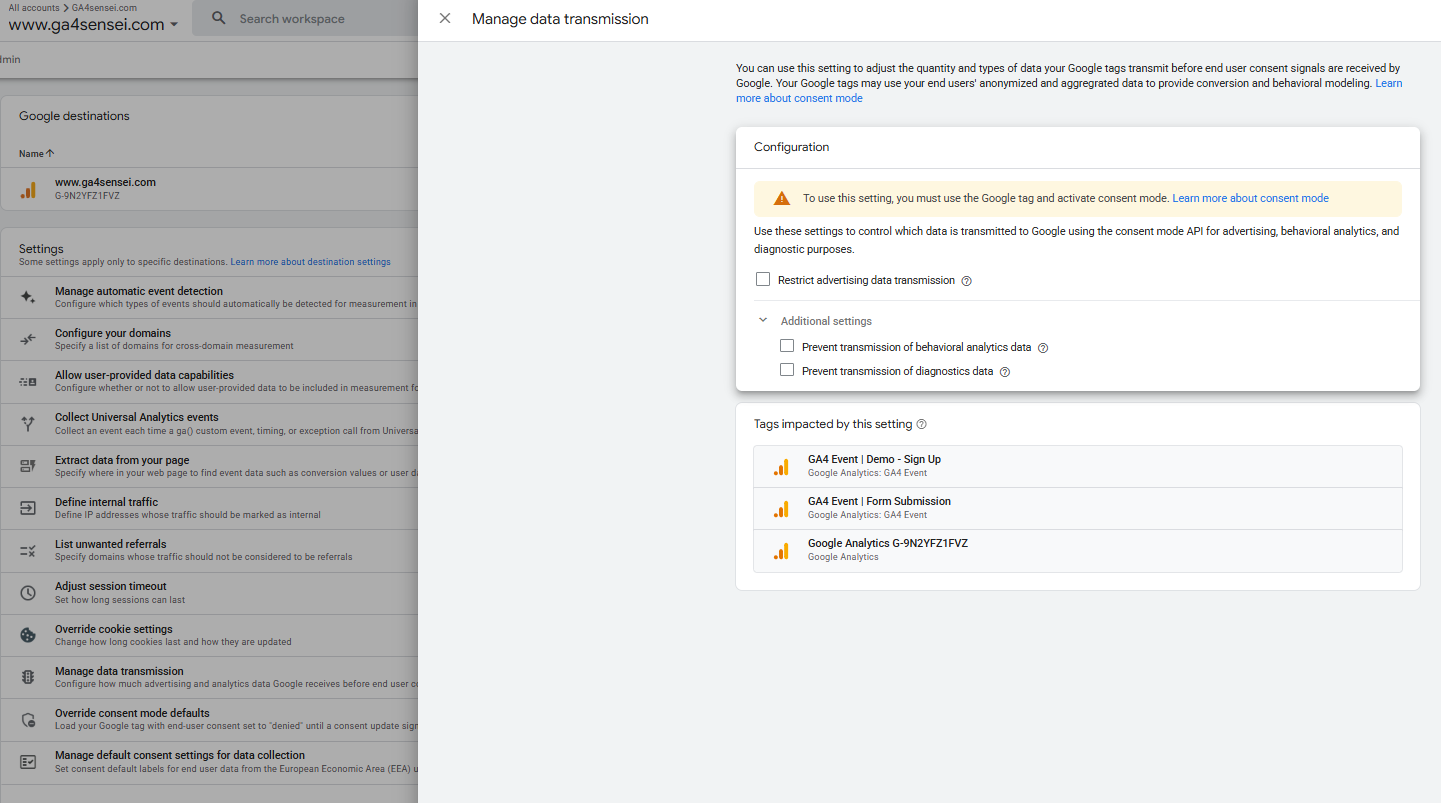
The Settings tab holds more than these controls. Under Show more you'll also find: collect Universal Analytics events, extract data from your page, define internal traffic, list unwanted referrals, adjust session timeout, override cookie settings, override consent mode defaults, and default consent settings for EEA data.
Points to know:
Consent mode must already be active. See Google's data transmission controls.
It only covers Google's tags. Meta, LinkedIn, TikTok and other vendor tags still need blocking through your cookie banner or trigger exceptions.
The container sets the ceiling. A destination tag can make a setting stricter, never looser.
How to verify it worked
In Preview (Tag Assistant):
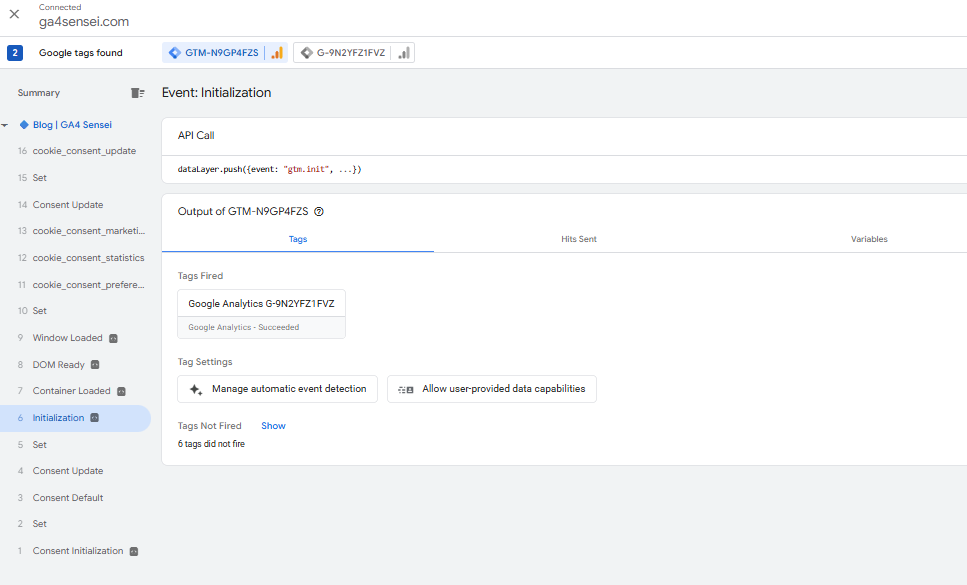
On the Initialization event, the Google Analytics destination tag fires, followed by two new tag settings: Manage automatic event detection and Allow user-provided data capabilities. Click each to see exactly what's on.
On Container Loaded, check which legacy tags still fire. In our test the legacy Google Tag and the Conversion Linker still fired here.
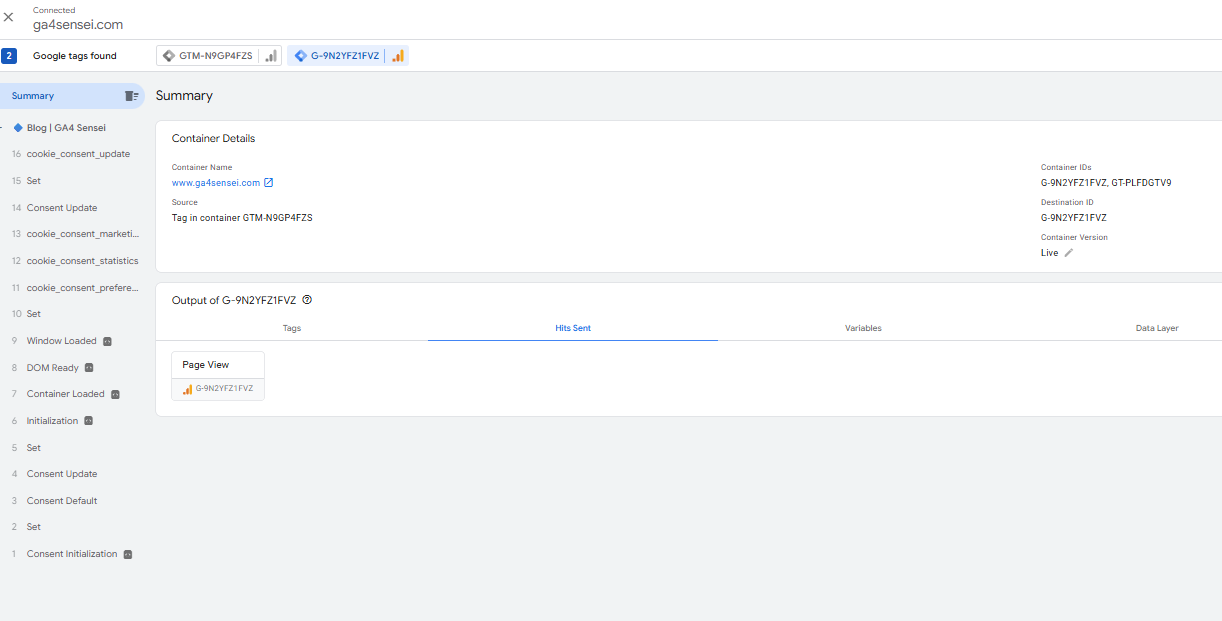
The Hits Sent tab shows one page view per ID, not two. Ours showed a single page view for G-9N2YFZ1FVZ.
With the cookie banner left unanswered or rejected, hits show as deferred or limited. After you accept, they're sent.
Walk through a real lead form or test purchase and check that the conversion goes to the right ID once.
In your browser (DevTools):
Network: only gtm.js loads, with no separate gtag/js?id=… request.
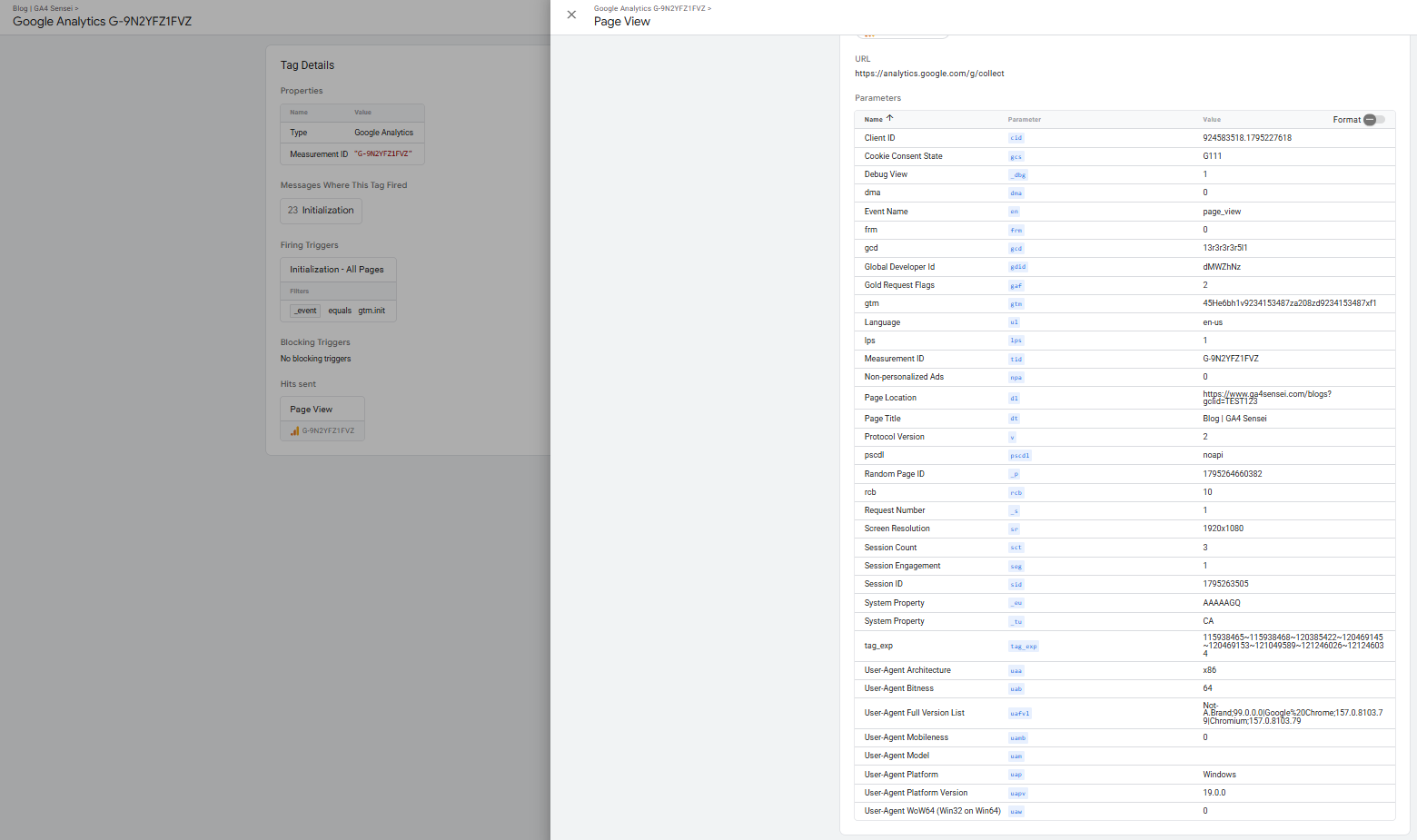
Cookies: open your site with ?gclid=TEST123 added to the URL and accept cookies. A gclaw cookie containing TEST123 shows that ad-click linking works without the Conversion Linker. _ga should be unchanged.
The hit itself: in Tag Assistant, open the page_view under Hits Sent. Page Location should include your gclid, and after accepting cookies the consent state (gcs) should read G111.
In GA4 and Google Ads:
GA4 Realtime and DebugView show the same events as before.
Google Ads conversion diagnostics stay healthy for the next 7 days.
Compare daily users, sessions and conversions week over week.
How to roll back
Go to Versions, open the version you noted before optimizing, and publish it. Your tags and settings return to how they were.
One exception: external account links and the access they grant aren't versioned. Remove them by hand under Admin → External account links.
FAQ
Is Google removing the Google tag? Not right now. The "Google Tag" type is now labelled Legacy and still works, but optimized containers use destination tags instead.
Do I have to optimize my container? No. It's opt-in, and Google hasn't announced a deadline. You get the benefits only after you optimize.
Will I lose GA4 history or Google Ads conversions? No. History stays in GA4. Conversions keep recording as long as your destination tags fire correctly, which is why you test in Preview first.
Can I delete the Conversion Linker? Yes, once Google Ads and Floodlight are optimized destinations and you've checked that gclaw is still set. Pause it first, then delete it in a later version. A server-side container running Google Ads tags may still need its own.
Does consent mode still work after optimizing? Yes. Destination tags respect your existing consent mode. "Manage data transmission" is an optional extra.
Why can't the wizard migrate my Google tag? Usually because its Tag ID comes from a variable, such as a Lookup Table, RegEx Table or custom JavaScript. Constants work.
Does this affect server-side GTM? The server container doesn't change. Keep your server container URL in the destination tag.
Who gets access to my container? People with access to a linked GA4 property or Google Ads account get Read access to the container by default, unless you choose "No access" in the wizard.
How do I undo it? Republish your previous container version, then remove any external account links you don't want.
Check your setup for free
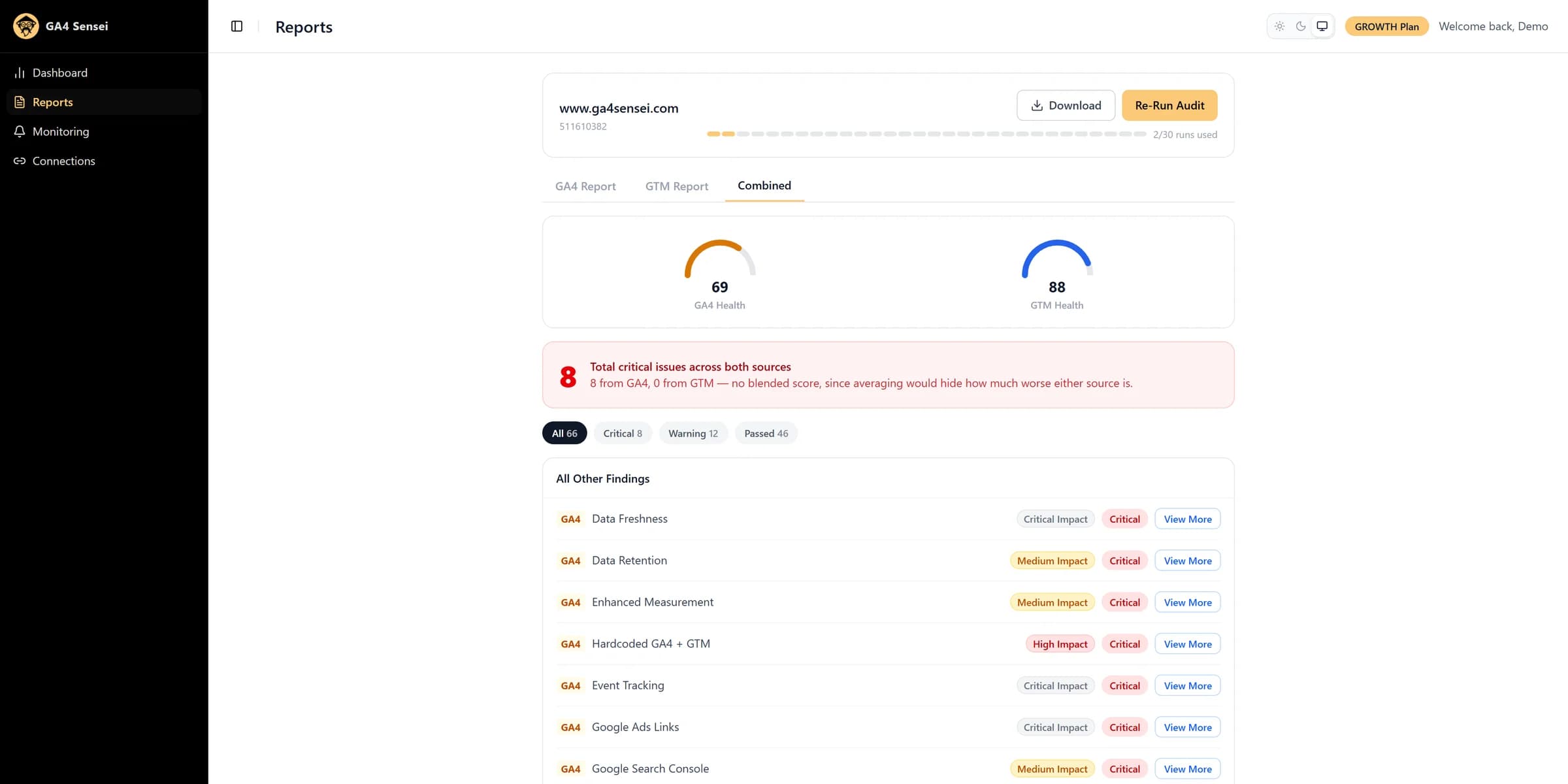
Optimizing or not, make sure your container is right. Sign up for free and run a GA4 and GTM audit with GA4 Sensei. It checks your GA4 property and your GTM container side by side, including a Container Optimization Readiness section built for this update: legacy Google tags still loading next to a destination, Google tags the wizard can't migrate, conflicting settings that would be merged, classic GA4 Configuration tags, catch-all custom event triggers, hard-coded gtag.js, and whether automatic user-provided data detection is on. It doesn't affect your score, so you can optimize on your own schedule.
Run a free GA4 audit → · See a sample report · GA4 audit checklist
Sources: Google: Updates to Google tag and Google Tag Manager · Google: Destinations · Google: Data transmission controls · Google: Conversion Linker · Simo Ahava · Analytics Mania · Optizent · Stape. Last updated: 21 Nov 2026.